Switching from Let's Encrypt to CloudFlare for SSL/TLS Certs
November 09, 2024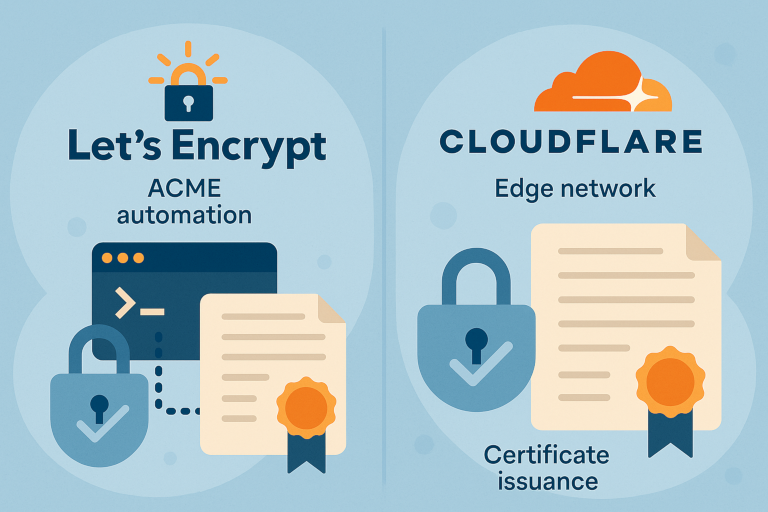
Share this post


SSL/TLS certificates are the backbone of secure web communication, and if you’ve been riding the Let’s Encrypt wave for a while, you know the benefits of free, automated, and open-source security. 🌊 But what if you’re ready to explore Cloudflare’s SSL/TLS certificates? Let’s dive into why you might want to make the switch, what it involves, and how to keep your site running securely. 🚀
Why Switch? 🤔
Both Let’s Encrypt and Cloudflare offer free SSL/TLS certificates, so why bother switching? Here are a few reasons why developers and site owners might consider moving from Let’s Encrypt to Cloudflare:
-
Integrated Security Features: Cloudflare’s certificates are part of a broader security suite, which includes DDoS protection, Web Application Firewall (WAF), and caching. Let’s Encrypt provides solid certificates, but not the extra bells and whistles that Cloudflare offers.
-
Simplified Management: Cloudflare makes certificate management straightforward by automating certificate issuance and renewal without the need to configure a client on your server. It’s all handled through Cloudflare’s dashboard.
-
Performance Boosts: By utilizing Cloudflare’s global Content Delivery Network (CDN), you may see faster load times thanks to their distributed servers and optimization tools.
The Differences: Let’s Encrypt vs. Cloudflare’s SSL/TLS 🌐
Let’s Encrypt and Cloudflare serve similar purposes but work in different ways. Here’s a quick breakdown of some of the distinctions:
| Feature | Let’s Encrypt | Cloudflare SSL/TLS |
|---|---|---|
| Certificate Type | Domain Validation (DV) only | Flexible: DV, Full (Strict) |
| Renewal | Manual or automated via ACME | Fully automated |
| Extra Security Features | None | DDoS protection, WAF, CDN |
| Origin Certificate | Not applicable | Yes, with origin certificates |
| Compatibility | Broad browser support | Also broad but can vary by mode |
Both options are free, but Let’s Encrypt requires a bit more manual setup or use of the ACME protocol to renew certificates, whereas Cloudflare handles all the magic through their dashboard. ✨
Preparing for the Switch 🛠️
To switch from Let’s Encrypt to Cloudflare SSL/TLS, you’ll need to adjust a few settings, and it helps to have your DNS set up with Cloudflare first. Follow these steps to get started:
Step 1: Point Your Domain to Cloudflare
If you haven’t already, create a Cloudflare account, add your domain, and point your DNS nameservers to Cloudflare. This step is essential for enabling Cloudflare’s SSL/TLS service.
Step 2: Choose Your SSL/TLS Mode
Once your domain is active on Cloudflare, navigate to the SSL/TLS section in the Cloudflare dashboard. Here, you can choose from the following modes:
-
Flexible: Encrypts traffic between visitors and Cloudflare, but not between Cloudflare and your server. Good for non-sensitive sites.
-
Full: Encrypts traffic between visitors and Cloudflare, and between Cloudflare and your server. Requires an SSL certificate on your server (Let’s Encrypt or self-signed).
-
Full (Strict): The most secure mode, requiring a valid SSL certificate on your server and fully encrypted communication.
⚠️ Pro Tip: Go for “Full (Strict)” if you want end-to-end encryption with a verified certificate on your server. This ensures maximum security without compromising performance.
Step 3: Set Up an Origin Certificate
For an extra layer of security, you can generate a Cloudflare Origin Certificate. This certificate encrypts communication between Cloudflare and your origin server and can be installed alongside or in place of your Let’s Encrypt certificate.
- Go to the SSL/TLS section and select Origin Certificates.
- Generate a certificate, copy the key and certificate, and install it on your server.
- Update your server to listen to HTTPS requests with the new certificate.
Step 4: Configure Your Server Software 🗒️
After setting up Cloudflare’s SSL/TLS, you’ll want to ensure your server is properly configured to handle HTTPS requests. Here’s a quick guide on how to update the configuration files for both Apache2 and Nginx to support Cloudflare’s SSL certificates.
For Apache2 🪶
-
Locate the Virtual Host File: Open the Apache configuration file for your site. This is usually located in
/etc/apache2/sites-available/yourdomain.conf.sudo nano /etc/apache2/sites-available/yourdomain.conf -
Configure the SSL Virtual Host: Make sure you have a
<VirtualHost *:443>section to handle HTTPS. Here’s an example configuration:<VirtualHost *:443> ServerName yourdomain.com ServerAlias www.yourdomain.com # Document Root DocumentRoot /var/www/yourdomain # SSL Certificate and Key SSLEngine on SSLCertificateFile /path/to/cloudflare/origin.pem SSLCertificateKeyFile /path/to/cloudflare/origin-key.pem # Recommended Security Headers Header always set Strict-Transport-Security "max-age=63072000; includeSubDomains; preload" </VirtualHost> -
Enable SSL Module: If not already enabled, run:
sudo a2enmod ssl -
Restart Apache: Save the changes and restart Apache to apply them:
sudo systemctl restart apache2
For Nginx 🟩
-
Locate the Server Block File: Open the Nginx configuration file for your site, usually located in
/etc/nginx/sites-available/yourdomain.sudo nano /etc/nginx/sites-available/yourdomain -
Configure the Server Block: Make sure you have a server block for port 443 to handle HTTPS. Here’s an example configuration:
server { listen 443 ssl; server_name yourdomain.com www.yourdomain.com; # Document Root root /var/www/yourdomain; # SSL Certificate and Key ssl_certificate /path/to/cloudflare/origin.pem; ssl_certificate_key /path/to/cloudflare/origin-key.pem; # Recommended Security Settings ssl_protocols TLSv1.2 TLSv1.3; ssl_ciphers HIGH:!aNULL:!MD5; add_header Strict-Transport-Security "max-age=63072000; includeSubDomains; preload" always; } -
Test Configuration: Run the following command to ensure there are no syntax errors in your configuration:
sudo nginx -t -
Restart Nginx: Save your changes and restart Nginx to apply them:
sudo systemctl restart nginx
Step 5: Test Your Setup 🧪
Once your SSL/TLS mode is configured, run a few tests to ensure everything’s working smoothly. You can use tools like SSL Labs to check the configuration or simply visit your site in a browser to confirm the HTTPS padlock shows up.
Pros & Cons of Switching 🔍
Before fully embracing Cloudflare, it’s worth weighing the benefits and drawbacks.
Pros ✅
- Hands-off Management: No more worrying about ACME clients or renewal scripts. It’s all handled in the Cloudflare dashboard.
- Enhanced Security: Gain access to Cloudflare’s security suite, including DDoS protection and WAF.
- Performance Gains: Benefit from Cloudflare’s CDN, which can reduce latency and improve load times.
Cons ❌
- Dependency on Cloudflare: Your SSL/TLS certificate and security setup become reliant on Cloudflare’s services.
- Less Control: Cloudflare’s automated setup is convenient but offers less flexibility than managing certificates directly.
In The End
Switching from Let’s Encrypt to Cloudflare’s SSL/TLS certificates can streamline security management, improve performance, and reduce the maintenance overhead on your server. However, this choice might not be for everyone; if you need full control over your certificates or prefer a fully open-source solution, Let’s Encrypt remains a solid option.
In the end, choosing the right SSL/TLS provider is about aligning with your website’s security needs and workload. With Cloudflare, you get a strong combination of performance and security - all with a few clicks. 🔐✨ So, if you’re ready to make the switch, buckle up, grab some coffee ☕, and let Cloudflare take the reins on security while you focus on building the next big thing.