Demystifying User & File Permissions on Debian Linux
June 11, 2025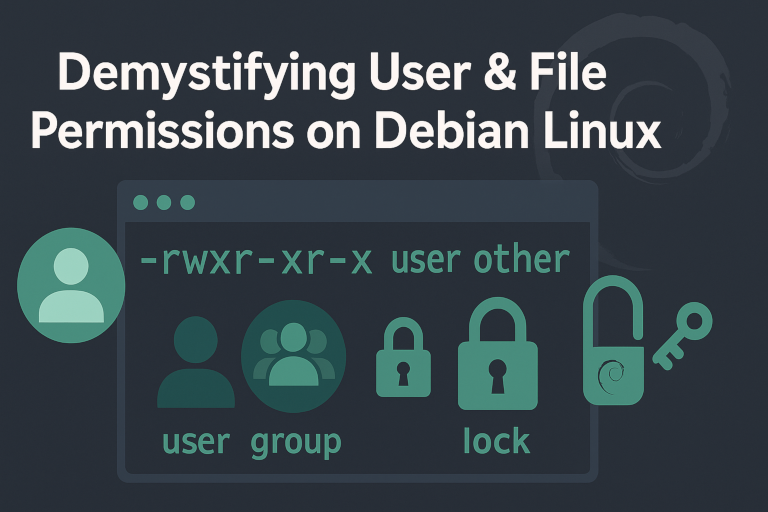
Share this post


“Unix was not designed to stop you from doing stupid things, because that would also stop you from doing clever things.” ― Doug Gwyn
1. Introduction
Whether you are hardening a production server or simply configuring your personal laptop, understanding user, group, and other permissions is crucial. This article serves both as a step‑by‑step tutorial and a quick‑reference manual for everyday use.
2. The User–Group–Other Model
Every file or directory in Debian (and POSIX systems in general) is associated with three classes of entities:
| Class | Shorthand | Typical Audience |
|---|---|---|
| User | u | The file owner (you, hopefully) |
| Group | g | A team the owner belongs to |
| Other | o | Everyone else |
A fourth class - a for all - is simply a macro that means “u, g, and o.”
3. Octal (Numeric) Permissions
Unix permissions map neatly to a three‑digit octal number, commonly called the “chmod 755 style.” Each digit is a sum of bits:
| Permission | Binary | Octal | Meaning |
|---|---|---|---|
read (r) | 100 | 4 | View content |
write (w) | 010 | 2 | Modify |
exec (x) | 001 | 1 | Run/enter |
Combine the bits per class:
7 = 4 + 2 + 1 → rwx   # full control
5 = 4 + 0 + 1 → r-x   # read & execute
6 = 4 + 2 + 0 → rw-   # read & write
4 = 4 + 0 + 0 → r--   # read‑only
0 = 0 + 0 + 0 → ---   # no permissions
Common recipes:
| Mode | Who can do what | Recommended use |
|---|---|---|
| 755 | Owner: rwx; Group & Other: r-x | Public executables & web roots |
| 700 | Owner only: rwx | Private scripts & SSH keys |
| 644 | Owner: rw-; Group & Other: r-- | Config files & HTML pages |
| 775 | Owner & Group: rwx; Other: r-x | Shared project directories |
4. Symbolic (Text) Permissions & the ls -l Output
When you run ls -l, you get something like:
drwxrwxr-x 21 user1 user1 4096 Apr 26 16:15 projects/
-rw-rw-r--  1 user1 user1  472 Nov  9  2024 403.html
Let’s decode drwxrwxr-x:
-
File type (char 1)
-regular fileddirectorylsymlink,ccharacter device, etc.
-
Permission triads (chars 2‑10)
rwx- user (u)rwx- group (g)r-x- other (o)
-
Links (21) – number of hard links or sub‑dirs
-
Owner (user1) – user account name/UID
-
Group (user1) – primary group/GID
-
Size (4096) – bytes (note: directories often show 4096 because of ext4 block size)
-
Date/Time (Apr 26 16:15) – last modification
-
Name (projects/) – with trailing slash for directories
Special Bits in Symbolic Form
| Bit | Symbolic | Octal | Effect |
|---|---|---|---|
| setuid | s in user triad | 4000 | Executes with owner UID |
| setgid | s in group triad | 2000 | Executes with group GID; dirs inherit group |
| sticky | t in other triad | 1000 | Only owner/root may delete (e.g., /tmp) |
Example: rwsr-xr-x → setuid executable (chmod 4755 mybin).
5. The chmod, chown, and chgrp Power Trio
| Command | Purpose | Quick Example |
|---|---|---|
chmod | Change permission bits | chmod 755 /var/www |
chown | Change ownership (user + optional group) | sudo chown www-data:www-data index.html |
chgrp | Change group only | sudo chgrp developers project.log |
Symbolic flags with chmod:
chmod u=rw,g=r,o= filename     # explicit
chmod g+w,o-rwx my.conf        # additive/subtractive
chmod a+X scripts/ -R          # capital X adds exec only where already executable or directory
More Examples:
- Grant group write access:
chmod g+w report.txt - Remove all permissions for others:
chmod o-rwx secret.key - Set exact permissions:
chmod u=rwx,g=rx,o=r dir/
6. Default Permissions & umask
When you create a new file or directory, the kernel starts from a base of 666 (files) or 777 (dirs) and then subtracts the umask (default 022 on Debian).
$ umask          # show current mask
0022             # leading 0 ⇒ octal, not decimal
Resulting defaults:
| Resource | Calculation | Final Mode |
|---|---|---|
| File | 666 – 022 = 644 | rw‑r‑r— |
| Directory | 777 – 022 = 755 | rwxr‑xr‑x |
To make collaborative group directories:
# Drop the sticky '2' so group gets write
umask 0002
Add umask 0002 to /etc/profile or your shell RC for permanence.
7. Groups on Debian: The Social Network
Debian follows standard GNU/Linux group handling but adds a few distro‑specific niceties:
-
Per‑User Private Groups (PUPG): By default,
addusercreates a group with the same name as the user and makes it the user’s primary group. This allows collaborative sharing via group bits without handing out world write access. -
Primary vs Secondary Groups:
- Primary (GID in
/etc/passwd) becomes the default owning group of new files. - Secondary groups live in
/etc/groupand are additive.
- Primary (GID in
-
Management Commands:
Task Command Create a group sudo addgroup devteamAdd user to group sudo usermod -aG devteam aliceList groups for user groups aliceorid aliceSwitch primary group (new session) newgrp devteam -
Shared Directories with SGID:
sudo mkdir /srv/project
sudo chown :devteam /srv/project
sudo chmod 2775 /srv/project     # 2 = setgid bit
All new files will inherit devteam as their group.
8. Permissions and File Types
“The most effective debugging tool is still careful thought, coupled with judiciously placed print statements.” - Brian Kernighan”
While the basic permission model applies to all file system objects, the interpretation of permissions varies by file type:
-
Directories:
read(r): List contents (e.g., withls).write(w): Create, delete, or rename files within.execute(x): Traverse the directory to access its contents. You needxon all parent directories to reach a file.
-
Symbolic Links: Symlinks don’t have their own permissions; the target file’s permissions apply. However, you need appropriate permissions on the containing directory to create or follow the link.
-
Device Files: Found in
/dev, these control hardware or virtual devices. For example, write permission to/dev/nulllets any process discard data by writing to it.
Understanding these differences is key to securing your system. For instance, denying execute permission on a directory prevents access to its contents, even if subdirectories have looser permissions.
9. Multi-User Environments
“The purpose of software engineering is to control complexity, not to create it.” - Pamela Zave
In shared setups like servers or development teams, permissions need careful management to balance access and security:
- Shared Directories: Use group permissions and the setgid bit to ensure new files inherit the group:
  sudo mkdir /srv/shared
  sudo chgrp devteam /srv/shared
  sudo chmod 2775 /srv/shared
Now, team members in devteam can collaborate seamlessly.
- Access Control: Follow the principle of least privilege. Grant only necessary permissions. For example:
  chmod 750 /srv/config    # Owner and group access only
chmod 640 config.ini # Group read-only- Regular Audits: Periodically check permissions to remove outdated access:
  ls -l /srv/shared
  groups ex-employee
These practices keep your environment secure and efficient.
10. Beyond POSIX: ACLs & Extended Attributes (Optional)
When simple bits aren’t enough (think web‑apps where multiple roles overlap), Debian’s acl package comes to the rescue:
sudo apt install acl
setfacl -m u:alice:rw setfacl -m g:auditors:r finance.xlsx
getfacl finance.xlsx
ACLs coexist with regular permissions; the kernel checks them after the classic model. Use ACLs when you need fine-grained control beyond the user-group-other model, such as granting specific users access without altering group settings.
11. Practical Scenarios
11.1 Secure a Private SSH Key
chmod 600 ~/.ssh/id_ed2551911.2 Serve Static Web Content
sudo chown -R www-data:www-data /var/www/html
sudo find /var/www/html -type f -exec chmod 644 {} +
sudo find /var/www/html -type d -exec chmod 755 {} +
11.3 Collaborative Git Repo
sudo addgroup gitshare
sudo usermod -aG gitshare alice bob charlie
sudo chgrp -R gitshare /srv/git/myrepo.git
sudo chmod -R g+ws /srv/git/myrepo.git       # sgid on dirs group write on files
12. Auditing Permissions
Regular audits help spot security risks like overly permissive files:
Using find:
-
World-writable files:
find / -perm -0002 -type f -
Root-owned files in home dirs:
find /home -user root -type f -
Other Tools: Use
statfor detailed info on a file:
stat -c "%A %U %G" file.txt # Shows perms, owner, groupIncorporate audits into your routine to catch issues early.
13. Extended Security Features (Advanced)
Beyond the traditional user-group-other permission model, Debian supports advanced security frameworks that offer fine-grained control over system resources and program behavior. These tools are designed for environments requiring heightened security, such as enterprise servers, government systems, or setups handling sensitive data. While they are powerful, they are also complex and not enabled by default on Debian. For most users, standard permissions combined with Access Control Lists (ACLs) suffice, but understanding these advanced options can be a game-changer for specific high-security scenarios.
-
SELinux (Security-Enhanced Linux): SELinux is a Mandatory Access Control (MAC) system developed by the NSA, integrated into the Linux kernel to enforce detailed security policies. Unlike discretionary access control (DAC), where users can modify permissions on their own files, SELinux uses security contexts-labels assigned to files, processes, and users-and a rule-based policy to dictate what actions are allowed. For example, SELinux can prevent a web server process from writing to arbitrary directories, even if it’s running as root, unless explicitly permitted by the policy. It’s widely used in environments like military or government systems where preventing unauthorized access or privilege escalation is paramount. On Debian, SELinux is available but requires manual installation (
apt install selinux-basics selinux-policy-default) and significant configuration effort-think custom policy writing and troubleshooting with tools likeaudit2allow. Its complexity makes it overkill for casual users, but it’s invaluable for locking down critical systems. -
AppArmor: AppArmor takes a different approach, focusing on restricting individual programs rather than system-wide policies. It’s a Linux security module that uses per-program profiles to define what resources an application can access-files, network connections, or system capabilities. For instance, you might configure an AppArmor profile to limit a web browser like Firefox to only read its configuration files and access the network, blocking it from writing to
/etcor executing arbitrary binaries. Debian includes AppArmor by default, with some pre-configured profiles (e.g., forcupsornginx) available viaapt install apparmor-profiles. It’s less resource-intensive than SELinux and easier to set up, making it ideal for securing specific applications like servers or daemons. Profiles are written in a straightforward syntax and managed with tools likeaa-genprofandaa-enforce. While not as comprehensive as SELinux, AppArmor strikes a balance between security and usability.
Both SELinux and AppArmor add significant security layers but demand time and expertise to implement effectively. They’re not essential for typical desktop or small-scale server use, where standard permissions and firewalls suffice. However, if you’re managing a system exposed to external threats or requiring strict compliance (e.g., PCI DSS, HIPAA), exploring these tools is worthwhile. Start with AppArmor for its simplicity, then graduate to SELinux if you need broader control. Be prepared for a learning curve-misconfigurations can lock you out of your own system!
14. Troubleshooting Checklist
Permission issues can be frustrating, but this expanded checklist will help you systematically diagnose and resolve them. Whether you’re facing a Permission denied error or unexpected behavior, these steps cover the most common culprits:
-
Check Effective User and Group IDs: Run
id -uto see your current user ID andid -Gto list all groups you belong to. Compare these with the file’s ownership (ls -l) to ensure you have the necessary user or group permissions. Usesudo -u user commandto test as another user if needed. -
Verify Path Components: Every directory in the file’s path must grant execute (
x) permission to allow traversal. For example, to access/var/www/html/index.html, you needxon/var,/var/www, and/var/www/html. Check withls -ld /path/*and fix withchmod +x /path. -
Mind the Mount Options: Filesystem mount options can override permissions. Run
mountor check/etc/fstabto see if flags likenoexec(blocks execution),nosuid(disables setuid bits), ornodev(prevents device files) dzi are applied. Remount withmount -o remount,exec /mountpointif appropriate. -
Investigate ACLs: If standard permissions look correct but access fails, ACLs might be in play. Use
getfacl fileto inspect extended permissions-look for specific user or group rules overriding the base settings. Modify withsetfacl(e.g.,setfacl -m u:user:rw file). -
Check for Immutable Flags: Files marked immutable can’t be changed, even by root. Use
lsattr -a fileto check for theiflag in the output (e.g.,----i--------). Remove it withchattr -i fileif necessary, then test access again. -
Verify Symbolic Links: For symlinks, permissions apply to the target file, not the link. Run
ls -lto identify symlinks (look for->) and check the target’s permissions withls -l $(readlink file). Adjust the target’s settings if needed. -
Examine Process Context: If a program (e.g., a script or binary) fails, its effective user or group might differ from your shell. Use
ps aux | grep processto see the running user, and test withsudo -u running_user command. -
Inspect File System Type: Some file systems (e.g., FAT32, NTFS) don’t support Linux permissions fully. Use
df -T /pathto check the file system type. If it’s non-native, remount with appropriate options (e.g.,uid,gid) or move files to an ext4 partition.
15. Quick-Reference Cheat Sheet
This cheat sheet provides a handy reference for managing permissions, ownership, and file attributes.
| Task | Command | Notes |
|---|---|---|
| Change file permissions recursively | chmod -R 755 /path | Applies to files and directories |
| Make a file immutable (ext4) | chattr +i filename | Prevents all changes until flag is removed |
| Remove immutable flag | chattr -i filename | Requires root if set by another user |
See default permissions (umask) | umask | Output like 0022 sets new file perms |
| Find world-writable files | find / -perm -0002 -type f | Lists files anyone can write to |
| Change ownership recursively | chown -R user:group /path | Updates user and group ownership |
| Set setgid bit on a directory | chmod g+s /path/to/directory | New files inherit group of parent dir |
| Display permissions in octal format | stat -c "%a" file | Outputs e.g., 644 for rw-r--r-- |
| Find files with specific permissions | find / -perm 644 -type f | Locates regular files with rw-r--r-- |
| Add user-specific ACL | setfacl -m u:user:rwx /path | Grants rwx to user beyond base perms |
| Remove all ACLs from a file | setfacl -b file | Reverts to standard permissions only |
| Check AppArmor status for a program | aa-status | grep program | Shows if a profile restricts program |
16. In The End
Congratulations-you’ve transformed from a bewildered onlooker to a confident guardian of your Debian file system! What once seemed like an arcane mix of letters and numbers (rwxr-xr-x, anyone?) is now a powerful tool in your hands. With a firm grasp of users, groups, permission bits, and advanced features like ACLs and security modules, you can keep your system secure, functional, and collaborative-whether it’s a personal machine or a bustling multi-user server.
But don’t stop here. File permissions aren’t static-they evolve with your system’s needs. Regularly audit permissions using tools like find and getfacl, especially in shared environments or when handling sensitive data. A quarterly review can catch misconfigurations before they become vulnerabilities. Experiment in a sandbox-like a virtual machine or a test directory-to hone your skills without risking real data. And always double-check your changes (ls -l, stat) to avoid accidental security gaps.
Permissions are both a shield and a scalpel: they protect your system and carve out precise access for users and processes. Keep learning, stay vigilant, and enjoy the control you now wield over your Debian domain. You’ve got this!
Feel free to fork this article on GitHub and/or open issues for corrections.
17. Glossary
This glossary provides definitions for key terms used throughout the article. Understanding these concepts will help you navigate the world of file permissions on Debian Linux with confidence.
-
ACL (Access Control List):
An extension to the traditional Unix permission model that allows for more fine-grained control over file and directory access. ACLs enable you to grant specific permissions to individual users or groups beyond the standard user-group-other framework. -
GID (Group Identifier):
A unique numerical identifier assigned to a group in the system. Each file and directory is associated with a group, and the GID helps determine group-level permissions. -
POSIX (Portable Operating System Interface):
A set of standards that defines how Unix-like operating systems, including Linux, should behave. POSIX ensures compatibility across different systems, particularly in areas like file permissions, which follow the user-group-other model. -
Setgid (Set Group ID):
A special permission bit that, when set on a directory, ensures that new files created within it inherit the group ownership of the directory rather than the creator’s primary group. It can also be set on executables to run with the group’s permissions. -
Setuid (Set User ID):
A special permission bit that allows an executable to run with the permissions of its owner rather than the user running it. This is often used for programs that need elevated privileges, likesudo. -
Sticky Bit:
A special permission bit applied to directories that restricts file deletion. Only the file’s owner, the directory’s owner, or root can delete files within a sticky-bit directory, even if others have write access (e.g.,/tmp). -
UID (User Identifier):
A unique numerical identifier assigned to each user account on the system. It is used to determine ownership and permissions for files and directories. -
Umask (User Mask):
A value that determines the default permissions for newly created files and directories. It works by subtracting specified permission bits from the system’s base permissions (usually666for files and777for directories). -
Symbolic Link (Symlink):
A type of file that acts as a pointer to another file or directory. Permissions on a symlink are not directly used; instead, the permissions of the target file or directory apply. -
Mount Options:
Settings applied when mounting a file system that can affect how permissions are handled. Common options includenoexec(prevents execution),nosuid(disables setuid bits), andnodev(prevents device files from being interpreted). -
Extended Attributes:
Metadata associated with files and directories that can store additional information, such as security labels or immutable flags (e.g., making a file unchangeable withchattr +i). -
File System:
The method and structure used to organize and store files on a storage device. Common file systems in Linux include ext4, XFS, and Btrfs, each with varying support for features like ACLs and extended attributes. -
Primary Group:
The default group assigned to a user, stored in/etc/passwd. When a user creates a file, it typically inherits the user’s primary group unless modified by tools likenewgrpor setgid directories. -
Secondary Group:
Additional groups a user belongs to, stored in/etc/group. These provide supplementary permissions but do not affect the default group ownership of new files. -
DAC (Discretionary Access Control):
The standard permission model in Unix-like systems where users can control access to their own files via permissions and ownership. Contrasts with MAC (Mandatory Access Control) systems like SELinux. -
MAC (Mandatory Access Control):
A security model where access policies are enforced system-wide, often using labels or contexts, as seen in SELinux or AppArmor. Users cannot override these controls, unlike in DAC.