Basic Vim Usage
March 17, 2024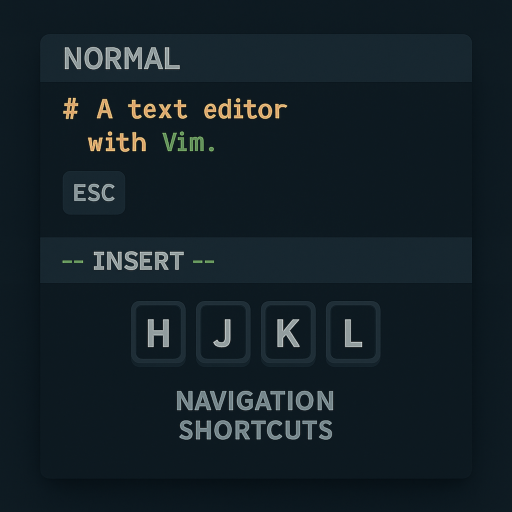
Share this post


Using Vim, the highly configurable text editor, is akin to learning a new language for many. Its efficiency and power come at the cost of a steep learning curve, but once mastered, it can significantly speed up your workflow. This article aims to demystify Vim for beginners, providing a guide to get started with this versatile editor.
Opening Vim
To start Vim, open your terminal or command prompt and type vim followed by the name of the file you wish to edit or create, like so:
vim filename.txt
If filename.txt exists, Vim opens it. If not, Vim starts a new file with that name.
Vim Modes
Understanding Vim’s modes is crucial. Vim operates in several modes, but the three primary ones are:
- Normal Mode: The default mode when you open Vim. It’s used for navigating and manipulating text but doesn’t allow for direct text entry.
- Insert Mode: Allows you to insert text. Unlike most text editors, you don’t start in this mode.
- Command Mode: Used to save files, quit Vim, and execute other commands.
Switching Modes
- Entering Insert Mode: Press
i(insert before the cursor) ora(append after the cursor) in Normal mode. - Returning to Normal Mode: Press
Esc(Escape key) from any mode. - Entering Command Mode: Press
:(colon) in Normal mode, then type your command.
Basic Navigation
In Normal mode, you can move around with the arrow keys or use these Vim-specific keys:
hto move leftjto move downkto move uplto move right
Editing Text
To start editing, switch to Insert mode by pressing i. Once done, press Esc to return to Normal mode. Here are a few basic editing commands in Normal mode:
xto delete the character under the cursor.ddto delete the whole line.yyto copy (yank) the whole line.pto paste the copied or deleted text after the cursor.
Saving and Exiting
To save or exit, you need to enter Command mode by pressing :. Then:
- Type
wand pressEnterto save (write) the file. - Type
qand pressEnterto quit Vim. - Combine commands to save and exit with
wqorx. - To exit without saving, type
q!and pressEnter.
Searching and Replacing
- To search for text in Vim, press
/, type your search term, and pressEnter. Pressnto find the next occurrence andNto find the previous one. - To replace text, use the
:s(substitute) command in the form of:s/old/new/to replace the first occurrence of “old” with “new” on the current line. To replace all occurrences on the current line, use:s/old/new/g. For the entire file, prepend%, as in:%s/old/new/g.
Customizing Vim
Vim is highly customizable through its .vimrc configuration file. To edit your .vimrc, open it with Vim:
vim ~/.vimrc
You can add configurations to change default settings, define custom shortcuts, or add new features through plugins. Here’s a simple example that sets Vim to use spaces instead of tabs and configures the backspace key to behave more intuitively:
set expandtab
set softtabstop=4
set shiftwidth=4
set backspace=indent,eol,start
Learning More
Vim has a built-in tutorial that you can access by typing vimtutor in your terminal. It’s an excellent way to start learning Vim commands interactively.
In The End
Vim’s learning curve is undeniable, but its design as a modal editor with a focus on keyboard commands allows for efficient text editing once mastered. Start with basic commands, gradually incorporate more into your workflow, and explore customization options to make Vim your own. Remember, like any skill, proficiency comes with practice.